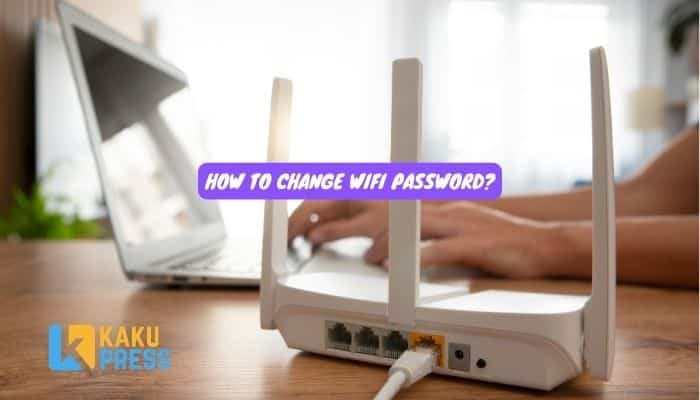
Want a new WiFi password? You can do it in a few minutes. You don’t need to call anyone. You just need to log in to your router and change one field.
This guide works for most Ethio Telecom routers, including Huawei, ZTE, and TP-Link models.
What You Need First?
Before you start, get these three things ready:
- A phone or laptop connected to your WiFi
- A web browser (Chrome, Safari, or any browser)
- Your router’s login details (found on a sticker on the back of the router)
That sticker has your router’s IP address, and a default username and password. You’ll need these to log in.
Find Your Router’s IP Address
Most Ethio Telecom routers use one of these two addresses:
- 192.168.1.1
- 192.168.0.1
Check the sticker on the back of your router. It will list the exact one for your device.
Log In to Your Router
- Open your web browser.
- Type the IP address into the address bar and press Enter.
- Enter the Username. This is usually “admin”.
- Enter the Password. This is often printed on the sticker, and on some models it’s also “admin”.
- Click Login.
If your device is a small mobile WiFi unit, look for the password inside the battery slot instead of on the outside.
Change the WiFi Password
Once you’re logged in, the exact menu name depends on your router brand. Use this table to find yours fast.
| Router Type | Menu Path | Field Name |
|---|---|---|
| Huawei (most home routers) | WLAN > Security | Pre-Shared Key |
| ZTE | Wireless > Wireless Security Settings | Pre-Shared Key |
| TP-Link | Wireless > Wireless Security | Password / PSK |
| Older ADSL modems | WLAN > Basic Setting | WPA Key |
Here’s what to do once you find the right menu:
- Open the WLAN or Wireless menu.
- Click on the Security tab.
- Find the field called “Pre-Shared Key” or “Password”.
- Type your new password.
- Click Apply Changes or Save.
Your router may restart for a few seconds. That’s normal.
Read: Business License Ethiopia: Documents, Fees & Registration Steps (2026)
Reconnect Your Devices
After the change, your old password won’t work anymore. On each phone, laptop, or TV:
- Go to WiFi settings.
- Tap your network name.
- Enter the new password.
- Connect.
Do this once on each device, and you’re done.
how to change wifi password?
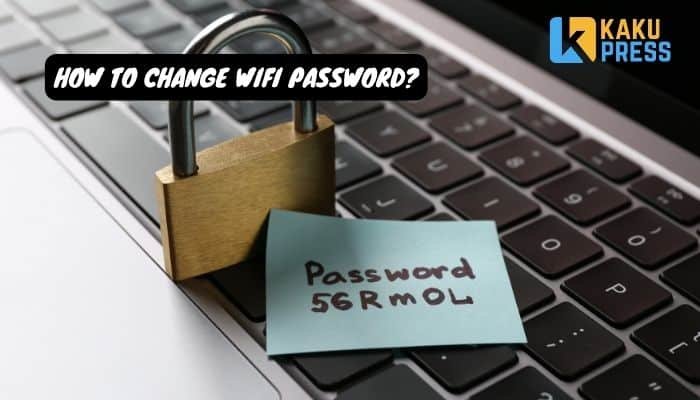
A weak password lets neighbors use your data for free and slows your internet down. Follow these simple rules:
- Use at least 8 characters.
- Mix letters, numbers, and one symbol.
- Avoid your name, birth date, or “12345678”.
- Don’t reuse your email or bank password.
A good example: Bir7u@nna25 — easy for you to remember, hard for others to guess.
What If You Can’t Log In?
This happens a lot. Try these fixes in order:
- Double-check the IP address. Try both 192.168.1.1 and 192.168.0.1.
- Try the default password again. Look closely at the sticker; “0” and “O” or “1” and “l” often get mixed up.
- Connect with a cable. If WiFi login fails, plug your laptop into the router with an ethernet cable and try again.
- Reset the router. Press and hold the small reset hole on the back for 10 seconds. This brings back the factory password on the sticker, but it also erases your other settings.
- Call Ethio Telecom support at 994 if nothing works.
Can You Change WiFi Password Using a Phone App?
Yes. Many newer routers support Ethio Telecom’s home router apps or the built-in app that comes with Huawei devices (called Smart Home or Hi-Link). Steps are the same as the browser method:
- Open the app and log in.
- Go to WiFi settings.
- Change the password field.
- Save.
If your router doesn’t have an app, the browser method above always works.
FAQs
How often should I change my WiFi password? Every 3 to 6 months is a good habit. Change it right away if you think someone else knows it.
Can I change my WiFi name and password at the same time? Yes. The WLAN settings page usually shows both the network name (SSID) and the password field together.
Will changing my password disconnect my devices? Yes, every device using the old password will disconnect until you enter the new one.
Is 192.168.1.1 the same for every Ethio Telecom router? No. Some models use 192.168.0.1 instead. Check the sticker on your router to be sure.
What if I forgot both the username and password? Reset the router using the small button on the back. This restores the default login shown on the sticker.
Does changing the password affect my internet speed? No. It only controls who can connect. Your speed depends on your data plan, not your password.